Troubleshooting
Generic ("it doesn't work")
-
Confirm that the VS Code extension and the Python module
ocp_vscodehave the same version. Both show in the OCP CAD Viewer UI, and the Output panel logs the check:extension.check_upgrade: ocp_vscode library version 4.0.2 is compatible with extension version 4.0.2 (major.minor match) -
Test whether the standalone OCP Viewer works, to eliminate VS Code issues.
- Open a work folder rather than a single Python file, to rule out Python path problems.
- Check the Output panel (menu View → Output, select "OCP CAD Viewer Log" from the drop-down) for:
PythonPath: '...'— the correct Python executable and environment?OCPCADController.startCommandServer: Server listening on port ...— the correct port? Default is 3939.OCPCADController.start: Starting websocket server ...— should not be followed by an error.ocpCadViewer.ocpCadViewer: OCPCADController started with port ... and folders: ...— the correct working folder?
- If all looks fine so far, toggle Developer Tools1 in VS Code and look in the Console tab for errors related to
three-cad-viewer.esm.js,three.jsor WebGL.
Reliable Python detection
The extension depends on VS Code using the correct Python interpreter. The most reliable ways: start VS Code from the command line in the desired Python environment, or select the interpreter in VS Code first via the Python extension's "Select Interpreter".
Spurious aborts: "KeyboardInterrupt", "Aborted", "Operation cancelled by user"
The "OCP backend" terminal reports KeyboardInterrupt or "Aborted" when the viewer opens, and the Quickstart buttons in the Viewer Manager report "Operation cancelled by user" - without anything having been cancelled.
This has been seen with the VS Code extension Python Environments activating environments in terminals by command, its default (issue #241). ⇒ Switch its activation to shell startup in your user settings:
"python-envs.terminal.autoActivationType": "shellStartup"
The setting applies to terminals opened afterwards, so close the "OCP backend" terminal and any other open terminal, then start the viewer again. If the aborts persist, disable the Python Environments extension.
RuntimeError: Cannot access viewer config. Is the viewer running?
The additional warning at the top of the stacktrace says:
UserWarning: The viewer doesn't seem to run: Port could not be cast to integer value as 'None'
- Is the viewer running? ⇒ Restart the viewer.
-
Check
~/.ocpvscode. With two viewers running, it should look like:{ "version": 2, "services": { "3939": "", "3940": "" } }⇒ To reset it, replace its content with
{"version": 2, "services": {}}— it is rebuilt when a viewer restarts. See Addressing a viewer for how the registry is used.
UserWarning: The viewer doesn't seem to run: [Errno 61] Connection refused
Are you using the right port? The Viewer Manager shows which port the viewer is running on:
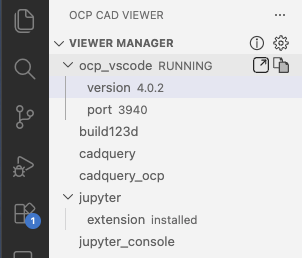
(For the standalone OCP Viewer, the port is in its startup output: The viewer is running on http://127.0.0.1:3939/viewer.)
⇒ Given that port, set_port(3939) or show(objects, port=3939). If the objects still don't show, restart the viewer: close the viewer tab (it cleans up behind itself) and start it again.
CAD models are (almost always) invisible in the viewer window
three-cad-viewer.esm.js THREE.WebGLProgram: Shader Error 0 - VALIDATE_STATUS false
Program Info Log: Program binary could not be loaded. Binary is not compatible with current driver/hardware combination.
VS Code's internal browser caches compiled WebGL artifacts like shaders. After a graphics driver update, the cached compiled version may not fit the new driver, producing this error. Solution: delete the VS Code browser cache — see e.g. this guide for the per-OS locations.
Configuration looks unexpected on the splash logo
Do not use the splash logo to verify your settings: the logo overwrites all settings with its own, to always look the same on every instance. ⇒ Use a simple model of your own to check your configuration.
-
Use shift-cmd-p (Mac) or shift-ctrl-p (Windows/Linux) and select Developer: Toggle Developer Tools. ↩