Viewer Manager and Library Manager
The OCP CAD Viewer sidebar has two panels. The Viewer Manager is about the running setup — your Python environment, the viewer, the Jupyter pieces. The Library Manager is about what is installed in that environment. Between them, everything the extension manages is visible and one click away.
The Viewer Manager
Before anything is set up, the panel is your starting point: a Select Python Interpreter link, the two Quickstart buttons (Installation walks through them), and a link to the OCP CAD Viewer preferences.
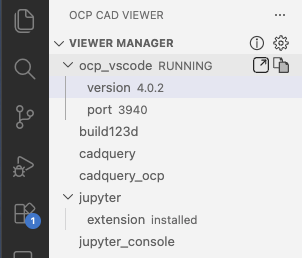
Once set up, it shows the state of your session:
-
Hovering over the VIEWER MANAGER heading reveals a gear button that opens the OCP CAD Viewer settings — the fastest route to the Workspace Config — and an info button that opens the extension's output panel.
-
The ocp_vscode entry shows the status of the CAD Viewer (RUNNING / STOPPED). It also reveals on hover an icon to open the viewer and one to paste
from ocp_vscode import *into the code. Indented, one can find the installed version1 and the port offered by the CAD Viewer2, see Addressing a viewer. -
The next entries cover some libraries (visible when installed):
- the build123d entry shows a paste icon to paste
from build123d import *into the code - the cadquery entry shows a paste icon to paste
import cadquery as cqinto the code - the cadquery_ocp entry shows a paste icon to paste
import OCPinto the code
- the build123d entry shows a paste icon to paste
-
The jupyter entry with a button on hover to install the extension
- the jupyter_console entry with a button on hover to open a Jupyter Console attached to your kernel.
Customizing the paste commands
The snippets the paste buttons insert come from the setting OcpCadViewer.advanced.codeSnippets:
  "OcpCadViewer.advanced.codeSnippets": {
    "cadquery": ["import cadquery as cq"],
    "build123d": ["from build123d import *"],
    "ocp_vscode": ["from ocp_vscode import *"],
    "cadquery_ocp": ["import OCP"],
    "jupyter": ["\n# %%\n"]
  },
The Library Manager
The Library Manager lists the Python libraries the extension cares about — build123d, cadquery, ipykernel, ocp_tessellate, ocp_viewer_core, ocp_vscode — each with its installed version in the currently selected environment, rescanned when the environment changes (or on demand via the "Refresh libraries list" command).
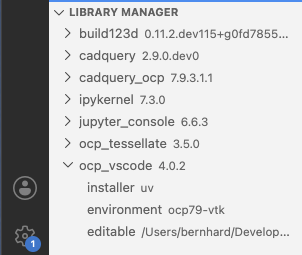
Per library, hovering reveals the actions:
- the down-arrow installs or upgrades the library into the selected environment; VS Code prompts to confirm the environment first, and the command's output lands in the terminal
- examples (download) — where a library offers examples, the green download button fetches them into a
<library>_examplesfolder next to your work (a file must be open so the extension knows the working folder)
Customizing the install commands
The commands the Library Manager runs come from two settings, OcpCadViewer.advanced.quickstartCommands and OcpCadViewer.advanced.installCommands:
  "OcpCadViewer.advanced.quickstartCommands": {
    "cadquery": ["{unset_conda} {pip-install} ocp_vscode~={ocp_vscode_version} cadquery"],
    "build123d": ["{pip-install} ocp_vscode~={ocp_vscode_version} git+https://github.com/gumyr/build123d"]
  },
  "OcpCadViewer.advanced.installCommands": {
    "cadquery": ["{unset_conda} {pip-install} --upgrade cadquery"],
    "build123d": ["{pip-install} --upgrade git+https://github.com/gumyr/build123d"],
    "cadquery_ocp": ["{pip-install} --upgrade cadquery_ocp"],
    "ocp_vscode": ["{pip-install} --upgrade ocp_vscode~={ocp_vscode_version}"],
    "ocp_viewer_core": ["{pip-install} --upgrade ocp_viewer_core"],
    "ocp_tessellate": ["{pip-install} --upgrade ocp_tessellate"],
    "ipykernel": ["{pip-install} --upgrade ipykernel"],
    "jupyter_console": ["{pip-install} --upgrade jupyter_console"]
  },
Note
- Due to rapid development of build123d, the default install commands use the installation from git. Change to PyPI if you want the latest published release instead.
uvenvironments are auto-detected and{pip-install}becomesuv pip install. To useuv addinstead, override the commands, e.g."build123d": ["uv add -p {python} --upgrade git+https://github.com/gumyr/build123d"].
Placeholders
Commands may contain the following placeholders, resolved at runtime against the currently selected Python interpreter:
| Placeholder | Replaced with |
|---|---|
{python} |
Absolute path to the selected interpreter (quoted) |
{pip-install} |
uv pip install -p "{python}" if the env is a uv venv, otherwise "{python}" -m pip install |
{unset_conda} |
On macOS/Linux, prefix env -u CONDA_PREFIX; on Windows, a temporary .cmd file that unsets CONDA_PREFIX before running the command |
{ocp_vscode_version} |
Version of the currently installed VS Code extension |