The window
One window, five surfaces: a folder tree down the left, the editor and the CAD Viewer across the top, and the console and the variable explorer across the bottom. Settings, About and the command palette are dialogs over it.
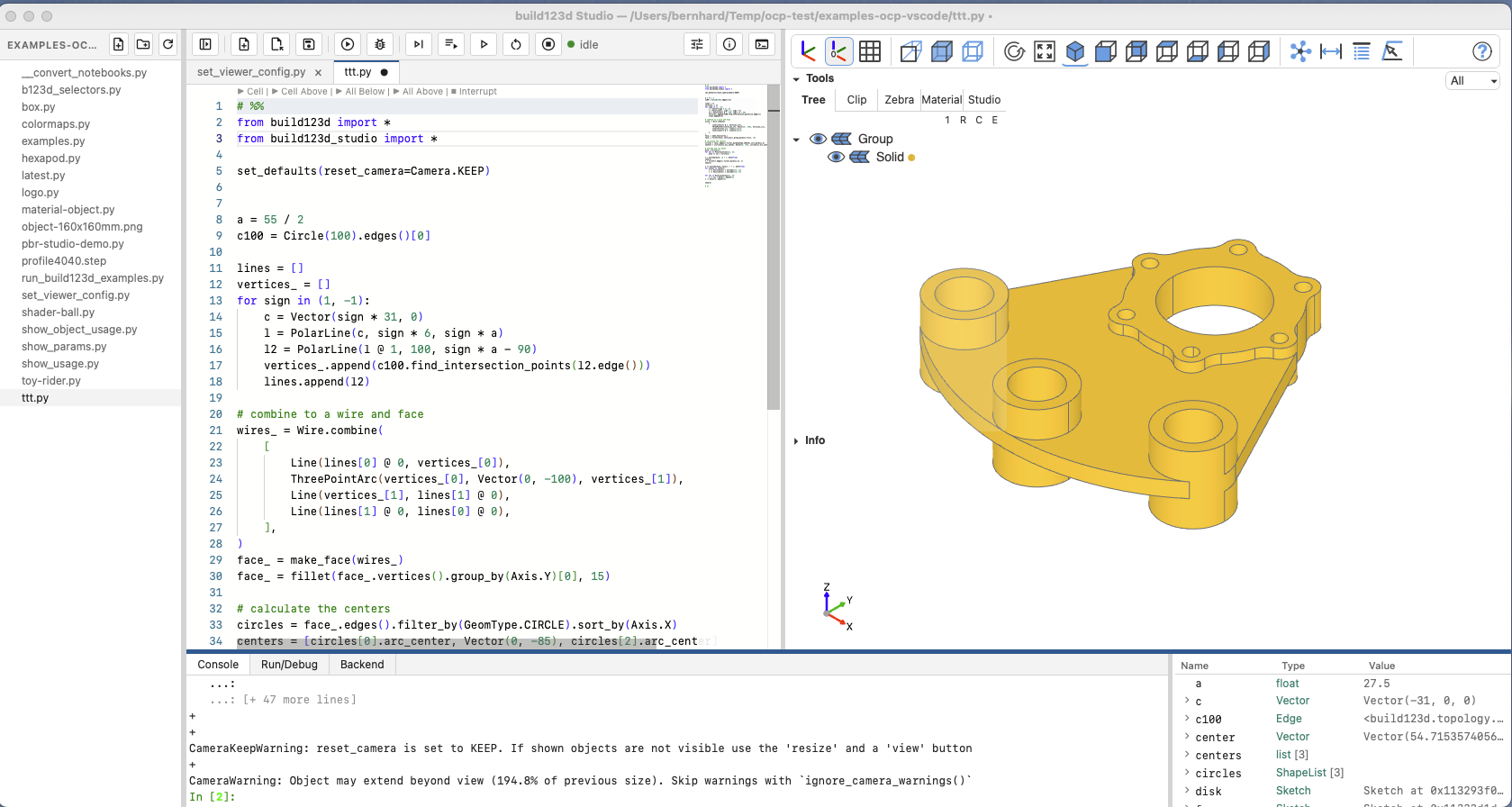
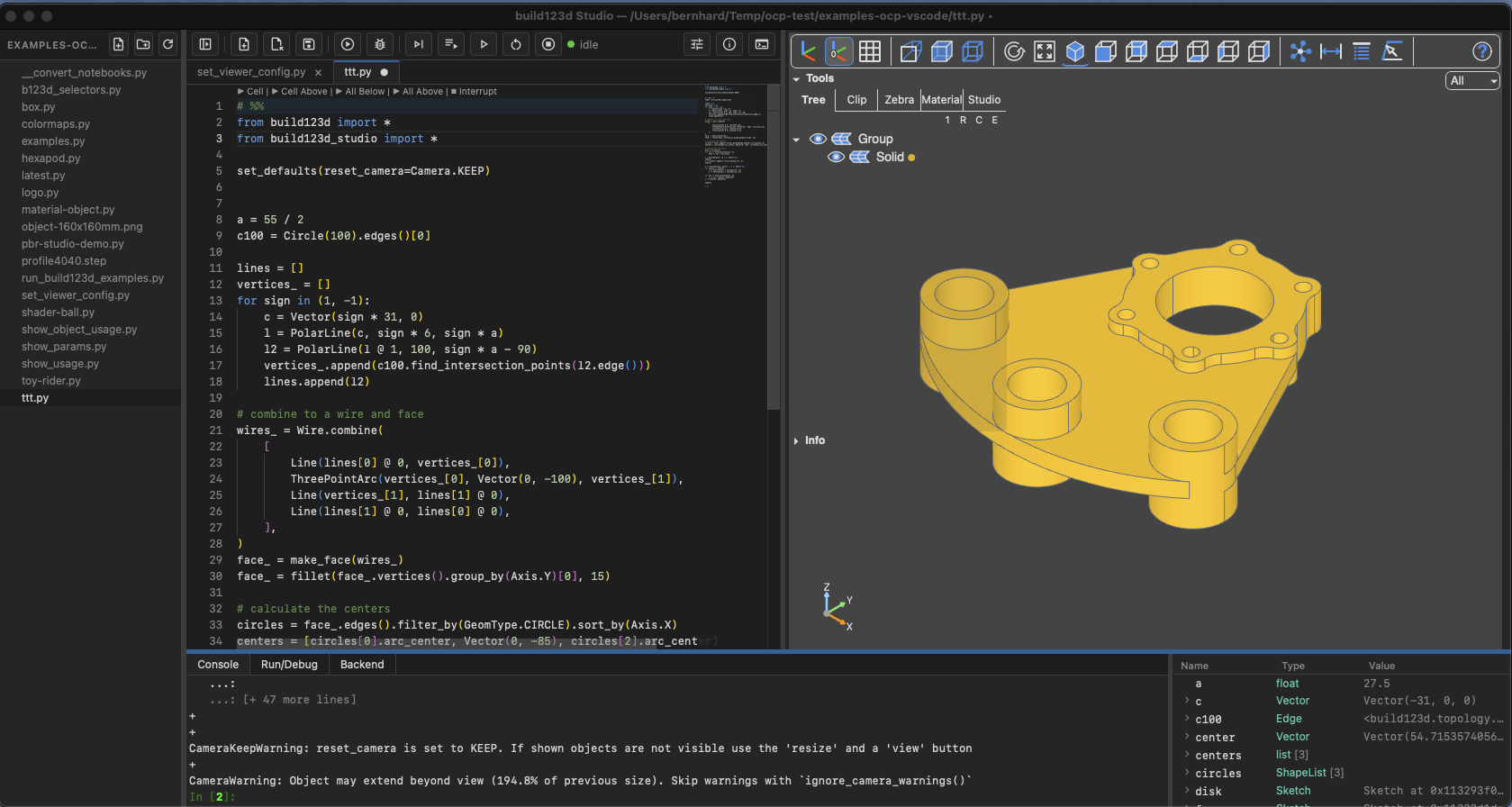
The four panes show the same object from four sides: the script that builds it, the model it produces, the console it prints to, and the object unrolled in the explorer.
The toolbar
Left to right, in four groups. Every button's tooltip carries its current shortcut, so a rebound chord shows there.
If the window is too narrow for the whole row, the row scrolls: drag it sideways with the mouse, hold Shift and use the wheel, or drag the thin bar along the row's bottom edge, which appears whenever there is more to the right. A drag on the buttons never presses the one it started on.
| Button | What it does |
|---|---|
| Toggle the file tree | Shows or hides the folder sidebar. There is no tree until a folder is open. |
| New File | A new buffer from the template in Settings → New file. |
| Open File | Opens a file in a new tab. |
| Save File | Saves the active tab, formatting it first if Format on Save is on. |
| Run File | Saves, then runs the file from disk in a process of its own; pressed again, it stops that process. |
| Debug File | The same with a debugger attached; becomes Stop Debugging while a session runs. |
| Run Cell | Runs the # %% cell at the caret on the kernel and moves to the next. |
| Run Selection | Runs the selection on the kernel, or the current line if there is no selection. |
| Run All | Sends the whole buffer to the kernel. |
| Restart kernel | Starts a new kernel. The namespace goes with the old one. |
| Interrupt | Interrupts what the kernel is running. Does nothing while the kernel is idle. |
| kernel indicator | starting, idle or busy — busy only for code you ran. busy [+2] means two more runs are waiting behind it. |
| health chip | Absent while everything is well; see Health. |
| Settings | Packages, new-file template, editor, viewer, debugging, test, shortcuts, application. |
| About | Versions, the environment path, the log files, the snippets file and this instance's Jupyter connection file, each with Copy and Open. |
| Command Palette | Every editor command by name — see Commands and shortcuts. |
Tabs
One tab per open buffer. A tab shows a dot while its buffer differs from disk. Two files with the same name are told apart by as much of their path as it takes — parts/bracket.py and spares/bracket.py. Too many tabs scroll; a thin bar along the row's bottom edge shows how much is out of view and can be dragged.
Choosing a tab puts the keyboard in the editor with the caret where it was, so what you type next lands in that file.
Preview tabs. A single click on a file in the tree opens it in a preview tab — its title in italics — and the next single click on another file replaces that tab instead of adding one, so clicking through a folder does not leave a tab per file behind. A tab is kept — the title upright, the next click adds a tab — by double-clicking the file in the tree, double-clicking the tab, or typing into it. Which tab is the preview survives a restart. This is VS Code's rule.
Pictures. A .png, .jpg, .jpeg, .gif or .webp opens in a tab that shows it, fitted to the pane: viewing only, nothing to type into and nothing to save. SVG opens as text, because sometimes the point is to edit it.
The folder tree
Present when a folder is open. A directory is read the first time it is expanded, so a folder of STEP and STL exports is not read until you open it. What has been read is kept current by a watcher on the project root: a file written by a script appears without a refresh. The header has New file, New folder and Refresh.
Every file is shown, not only Python. __pycache__, .git and .DS_Store are hidden; other dotfiles such as .gitignore and .python-version are shown.
Filter. The box under the header filters the tree: type part of a name — robot — or an extension — .py, .stl — and only matching files stay; Escape clears it. It filters what the tree has read: a folder you have not opened stays in the list and opens filtered; a folder that has been read and holds nothing matching is hidden with everything under it.
Right-click opens the row's menu: Rename…, Delete…, and for a CAD file — .stl, .step/.stp, .brep, .dxf, .svg — Show. Renaming a file moves its tab with it. A Makefile's menu also lists its targets — see Make.
Show runs build123d's importer on the kernel and shows the result. The console shows # Importing frame.step ... while it loads, then the line that ran — from build123d import import_step; from build123d_studio import show, Camera; _imported = import_step(".../frame.step"); show(_imported, reset_camera=Camera.RESET) — which is also the line to copy into a script. The result is bound to _imported and shown in the variable explorer; showing another file rebinds it. To keep a model, give it a name of your own: frame = _imported. The importer's defaults apply (the STL's unit, an SVG's flip_y); call the importer yourself with arguments when the default is not what you want. A click on a CAD file opens it in the editor, like any file — a STEP or an SVG is text and can be edited.
Binary files are not opened: a file with a NUL byte in its first 8 kB is refused — except pictures, which get a tab of their own. Files over 10 MB ask before opening, because a Python buffer is sent whole to the language server on every edit.
The parameter window
A model function with a @ui decorator gets a small floating window of its own, over the panes, with a control per parameter. It is dragged by its header, closed with ✕ or Escape, and reopened from View ▸ Toggle Parameters. See Parameters.
The bottom pane
Three tabs over one pane:
- Console — a
jupyter consoleon the kernel your cells run on. See Console and variables. - Run/Debug — the output of the separate process started by Run File, Debug File, a test run or a Make target, and while a debug session is live, an evaluate line into the paused frame.
- Backend — what the measurement process reports: which shape was clicked, what it indexed, why a measurement could not be taken. Read-only; the same lines go to
backend.log.
The active tab decides what the variable explorer shows. Console: the kernel's namespace. Run/Debug with a live session: the paused frame. Run/Debug without a session — a plain Run File, a finished session, or the tab clicked with nothing running — no explorer. Nothing switches back on its own; the output stays readable.
While a debug session is live, the step controls — continue, step over, step into, step out, restart, stop — sit in the same tab row. While anything else runs in a process of its own — a file, tests, make — the row holds Stop alone, which ends it.
Text selected with the mouse in the Run/Debug or Backend tab stays in that tab: a drag does not run on into the editor or across the tab names.
Camera shortcut. The button at the right end of the tab row shows the kernel's reset_camera default, the one show() uses when you pass none: a flip-camera icon means the next show resets the camera to fit the model; a photo-camera icon means the camera stays where you left it (KEEP, or CENTER from Settings). A click switches between the two by running set_defaults(reset_camera=…) on the kernel; the line appears in the console, and the icon changes when the kernel confirms it. The button always shows the kernel's current default, so a set_defaults() in your own script, a line typed in the console or a reset_defaults() all show in it. It changes the session's default only: a kernel restart brings back what Settings → Viewer → reset_camera says.
Health
The model channel that carries show(), the measurement process, the kernel, the language server and the console each have a lifecycle of their own, and each can fail while the window looks well. The chip in the toolbar says so.
It is hidden while everything is well. It shows degraded (working, with something to know) or failed (not working) — the worst state of any subsystem — and its tooltip lists every subsystem with what it last reported. Clicking it opens the Backend tab, where the reason is. A subsystem that newly fails brings that tab forward once.
starting is not a fault and is not shown: when the window appears, the measurement process is still loading the geometry kernel for a second or two.
Layout
The editor/viewer split and the console/explorer split are independent. Drag any splitter; the result is remembered, as are the window's size and position, in the data directory, so an update keeps the layout.
View → Toggle Sidebar hides the tree without closing the folder; View → Toggle Console and Variables hides the whole bottom row. Both survive a restart, as do the open files and the caret position in each.
Theme
The window follows the desktop's light or dark setting and changes with it. Settings → Application → Appearance offers Dark, Light and System; System is the default and the first two pin one. It is one setting for the whole window: editor, viewer and terminal change together.