Mouse and Keys
Mouse navigation
| Action | Binding |
|---|---|
| Rotate | left mouse button, drag |
| Rotate up / down | ctrl + left mouse button |
| Rotate left / right | meta (⌘ on macOS, Alt on Windows and Linux) + left mouse button |
| Pan | shift + left mouse button, or right mouse button |
| Zoom | mouse wheel, or middle mouse button |
Two control styles exist: trackball (the default — free rotation, no fixed up axis) and orbit (the up axis stays up). Choose with orbit_control=True/False on show. The rotate, pan and zoom sensitivities are the rotate_speed, pan_speed and zoom_speed settings.
Mouse selection
| Action | Binding |
|---|---|
| Pick element | double-click on the object, or click its label in the tree |
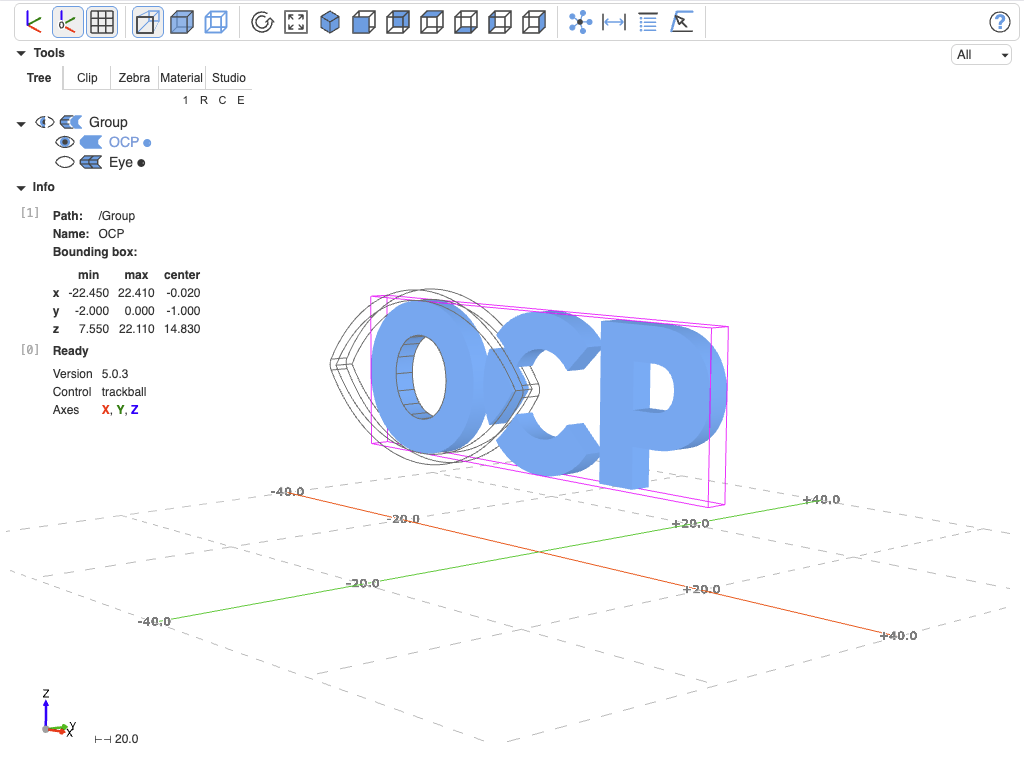
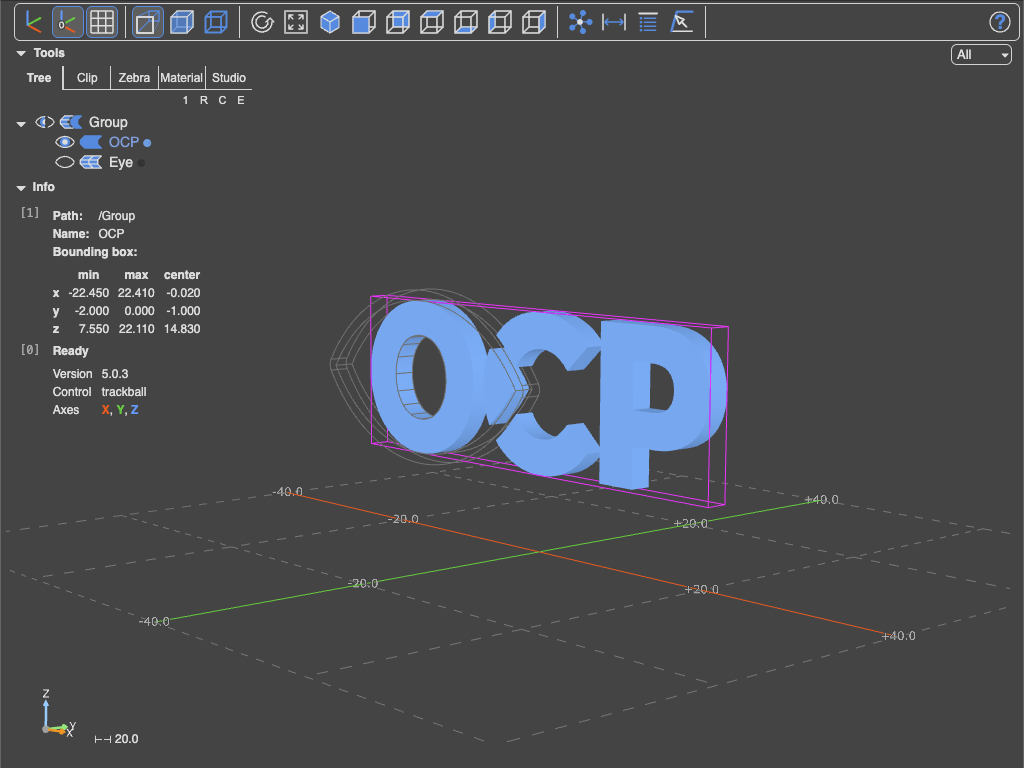
| Isolate element | shift + double-click, or shift + click on a tree label |
| Hide element | meta + double-click, or meta + click on a tree label |
| Hide other elements | shift + meta + click on a tree label |
| Set camera target | shift + meta + double-click on the object |
Independent of any tool, the element under the cursor is continuously highlighted as the mouse moves, with a live mesh-based readout of its attributes; the toolbar's filter dropdown restricts what gets highlighted.
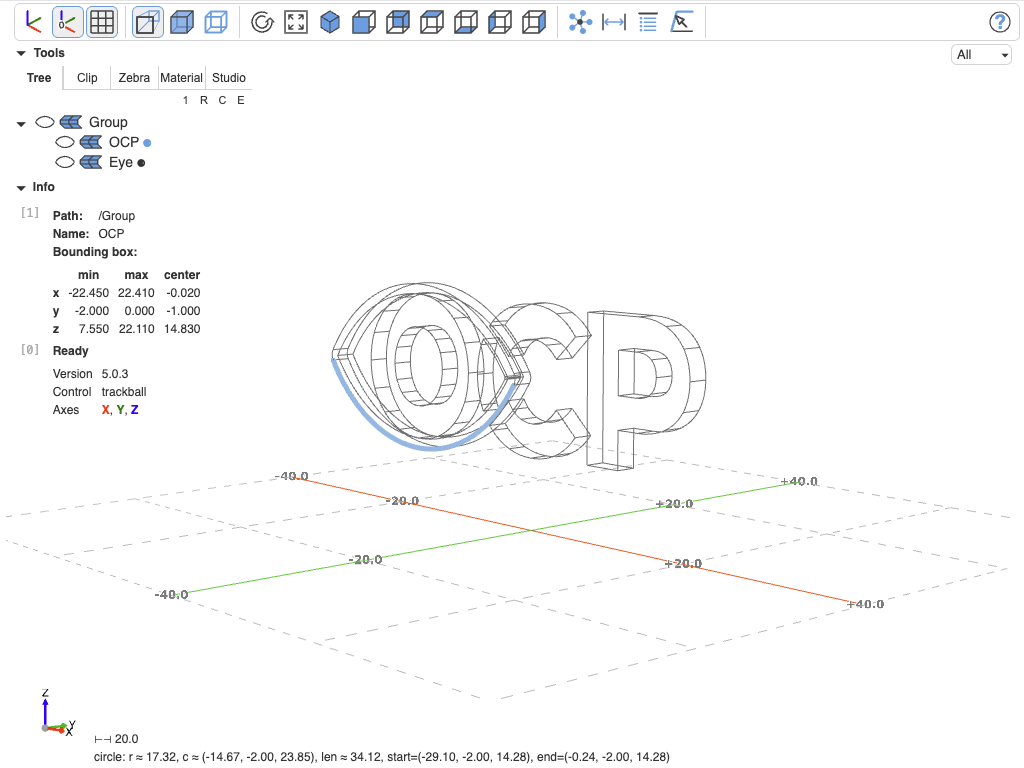
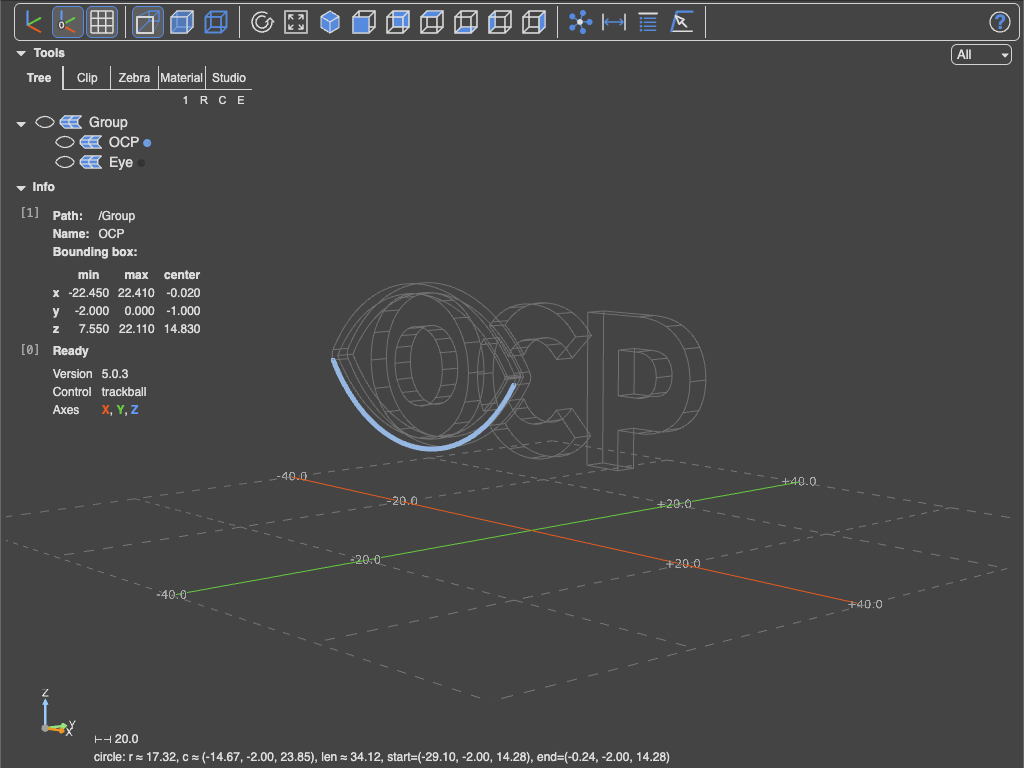
Picking an element highlights it, draws its axis-aligned bounding box, and writes its path, name and bounding box into the info box. Setting the camera target re-aims the camera at the picked element's bounding-box center (also logged in the info box) — useful for rotating around a detail instead of the whole assembly.
Modifier keys
The shift / ctrl / meta bindings above are not hard-wired: every viewer stores a modifier_keys mapping from the four logical keys (shift, ctrl, meta, alt) to the browser's modifier names (shiftKey, ctrlKey, metaKey, altKey), and the CAD Viewer reads its bindings from it. Remap them when a chord collides with your operating system or window manager.
The default depends on the operating system, because metaKey is ⌘ on macOS but the Windows/Super key on Windows and Linux, which the desktop takes for itself (Start menu, window snapping, moving windows) — so there the meta chords would never reach the viewer:
shift |
ctrl |
alt |
meta |
|
|---|---|---|---|---|
| macOS | shiftKey |
ctrlKey |
altKey |
metaKey (⌘) |
| Windows, Linux | shiftKey |
ctrlKey |
metaKey (Win/Super) |
altKey (Alt) |
The stored setting holds both maps, {"macOS": {...}, "default": {...}}, and each viewer applies the one for the platform it runs on — so a synced or copied config works on every machine. A file written by an earlier release holds a single flat map and keeps it, on every platform; edit or regenerate the file to pick up the per-platform default.
| Viewer | Where to set it |
|---|---|
| VS Code CAD Viewer | the OcpCadViewer.view.modifier_keys setting, one map per platform (macOS and default), so a synced settings.json works on every machine |
| OCP Viewer | modifier_keys in ~/.ocpvscode_standalone |
| Jupyter CadQuery | modifier_keys in ~/.jcq_config |
| build123d Studio | Settings → Viewer, Camera and controls |