Installation
The VS Code CAD Viewer is the extension OCP CAD Viewer plus the Python package ocp_vscode, installed at matching versions (major.minor — see Versioning).
Prerequisites
- Microsoft VS Code 1.85.0 or newer, with the Python extension installed
pythonandpip(oruv pip/uv add) available in the Python environment you will use for CAD development
The extension depends on VS Code using the right Python interpreter (your mamba / conda / pyenv / poetry / … environment): start VS Code from the command line in that environment, or select the interpreter in VS Code first.
Installation within VS Code
-
Open the VS Code Marketplace, search for and install OCP CAD Viewer. Afterwards the viewer is available in the VS Code sidebar:

-
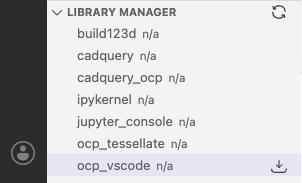
Clicking it shows the OCP CAD Viewer UI with the Viewer Manager and Library Manager:
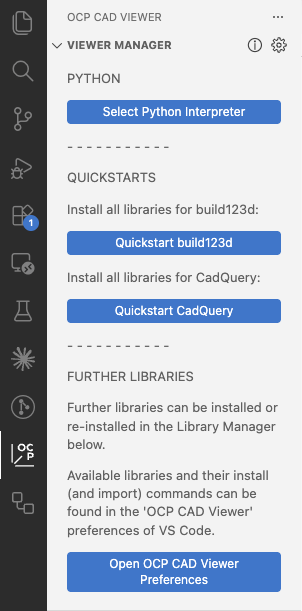
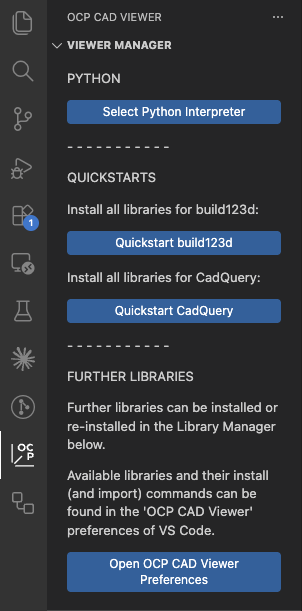
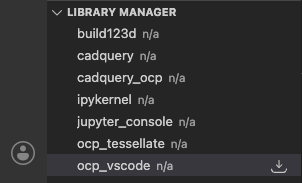
You have three options:
-
Prepare for build123d: press Quickstart build123d. This installs OCP, build123d, ipykernel (jupyter_client), ocp_tessellate and ocp_vscode via
pip -
Prepare for CadQuery: press Quickstart CadQuery. This installs OCP, CadQuery, ipykernel (jupyter_client), ocp_tessellate and ocp_vscode via
pip -
Ignore the quickstarts and install the libraries one by one in the Library Manager.
Afterwards you will see the installed library versions in the viewer and library manager:
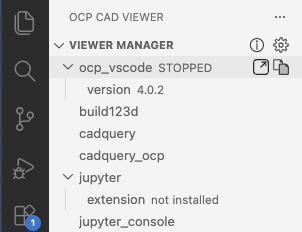
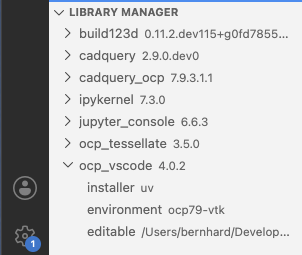
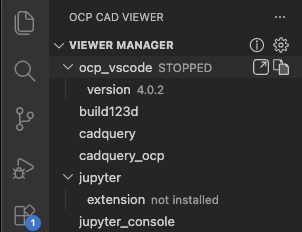
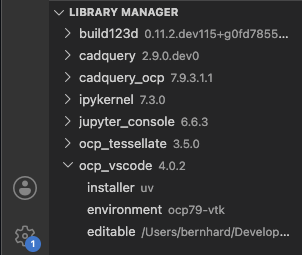
(depending on which quickstart option you chose, build123d or cadquery will be shown as installed)
Quickstart will also (optionally) install the Jupyter extension for VS Code, start the viewer, and create a demo file in a temporary folder so there is immediately a working example on screen.
Warning
Do not use the splash logo to verify your settings — it overwrites all settings with its own, to always look the same on every instance. Use a simple model of your own; if something is off, see Troubleshooting.
Installation via CLI
If you prefer the command line, install the Python side directly — activate the virtual environment first:
-
uv-based environments (recommended):source .venv/bin/activate uv add ocp-vscode -
other environments:
source .venv/bin/activate                     # venv
conda / mamba / micromamba activate <env>     # conda-like
pip install ocp-vscode
Notes:
ocp-vscodeis published on PyPI only, so conda, mamba or micromamba environments needpiporuv pip.- For Studio mode with MaterialX support, see Materials and Studio.
VSCodium and code-server
The extension is not on the OpenVSX marketplace, so VSCodium and code-server need a manual install:
- Go to the releases page and download the latest
ocp-cad-viewer-<version>.vsix. - VSCodium: install the
.vsixvia "Install from VSIX". - code-server: run
code-server --install-extension ocp-cad-viewer-<version>.vsixon the server.
Version matching
Extension and Python package must agree on major.minor; the viewer UI and the Output panel report the check:
extension.check_upgrade: ocp_vscode library version 2.9.0 is compatible with extension version 2.9.0
The command "Install ocp_vscode library" (also offered automatically) installs the Python side at the version the extension expects.
Troubleshooting installs
- If the install message reports a missing
piporuv pip, confirm the selected Python interpreter actually has one of them available. - For conda/mamba/micromamba environments,
pip(oruv pip) must be used — the default commands handle this via the{unset_conda}placeholder (see Library Manager). - If
pythoncannot be found at all, restart VS Code after activating your virtual environment in the terminal, or pick the interpreter via the Python extension's "Select Interpreter" command.