Show
show
Command
The show command is used to show one or multiple CAD objects and comes with the following parameters:
from ocp_viewer_core.viewer import show

show(*cad_objs, <keyword arguments>)
Arguments
Parameters
| Parameter | Description |
|---|---|
cad_objs |
All cad objects that should be shown as positional parameters |
Keywords for show
| Keyword | Description |
|---|---|
names |
List of names for the cad_objs. Needs to have the same length as cad_objs |
colors |
List of colors for the cad_objs. Needs to have the same length as cad_objs |
alphas |
List of alpha values for the cad_objs. Needs to have the same length as cad_objs |
modes |
A Render value or list of Render values for the cad_objs (default=None, i.e. Render.ALL).Render.ALL: show faces and edges, Render.EDGES: show edges only, Render.FACES: show faces only, Render.NONE: hide object |
materials |
List of Material objects or material name strings for the cad_objs. Needs to have the same length as cad_objs (default=None) |
progress |
Show progress of tessellation, None is no progress indicator (default="-+c"). Per object: "-": is reference, "+": gets tessellated with Python code, "": gets tessellated with native code, "c": from cache |
Viewer-specific keywords (each viewer accepts some of these and refuses the rest — see Viewer-specific keywords):
| Keyword | Description |
|---|---|
port |
The viewer to address when several are open (ocp_vscode, ocp_viewer) |
viewer |
The sidecar to draw into, by title (jupyter_cadquery) |
anchor |
Where to open that sidecar: "right", "split-right", "split-left", "split-top", "split-bottom" (jupyter_cadquery, default="right") |
cad_width |
Width of the viewer, where the caller decides it (jupyter_cadquery) |
height |
Height of the viewer, where the caller decides it (jupyter_cadquery) |
pinning |
Whether the view can be pinned as a PNG (jupyter_cadquery) |
Valid keywords to configure the viewer (**kwargs):
UI
| Keyword | Description |
|---|---|
glass |
Use glass mode where tree is an overlay over the cad object (default=False) |
theme |
Theme of the viewer: "light", "dark", or "browser" to follow the surface (default="browser") |
tools |
Show tools (default=True) |
tree_width |
Width of the object tree (default=240) |
Viewer
| Keyword | Description |
|---|---|
axes |
Show axes (default=False) |
axes0 |
Show axes at (0,0,0) (default=False) |
grid |
Show grid (default=False) |
ortho |
Use orthographic projections (default=True) |
transparent |
Show objects transparent (default=False) |
default_opacity |
Opacity value for transparent objects (default=0.5) |
black_edges |
Show edges in black color (default=False) |
orbit_control |
Mouse control use "orbit" control instead of "trackball" control (default=False) |
collapse |
Collapse.LEAVES: collapse all single leaf nodes, Collapse.ROOT: expand root only, Collapse.ALL: collapse all nodes, Collapse.NONE: expand all nodes (default=Collapse.ROOT) |
ticks |
Hint for the number of ticks in both directions (default=5) |
center_grid |
Center the grid at the origin or center of mass (default=False) |
grid_font_size |
Size for the font used for grid axis labels (default=12) |
up |
Use z-axis ('Z') or y-axis ('Y') as up direction for the camera (default="Z") |
explode |
Turn on explode mode (default=False) |
zoom |
Zoom factor of view (default=1.0) |
position |
Camera position |
quaternion |
Camera orientation as quaternion |
target |
Camera look at target |
reset_camera |
Camera.RESET: Reset camera position, rotation, zoom and target.Camera.CENTER: Keep camera position, rotation, zoom, but look at center.Camera.KEEP: Keep camera position, rotation, zoom, and target.Or, choose one of the presets Camera.ISO, Camera.LEFT, Camera.RIGHT, Camera.TOP, Camera.BOTTOM, Camera.FRONT, Camera.BACK (default=Camera.KEEP, via the viewer settings — see Keeping the camera orientation) |
clip_slider_0 |
Setting of clipping slider 0 (default=None) |
clip_slider_1 |
Setting of clipping slider 1 (default=None) |
clip_slider_2 |
Setting of clipping slider 2 (default=None) |
clip_normal_0 |
Setting of clipping normal 0 (default=None) |
clip_normal_1 |
Setting of clipping normal 1 (default=None) |
clip_normal_2 |
Setting of clipping normal 2 (default=None) |
clip_intersection |
Use clipping intersection mode (default=False) |
clip_planes |
Show clipping plane helpers (default=False) |
clip_object_colors |
Use object color for clipping caps (default=False) |
zebra_count |
Setting of zebra stripe count (default=9, range: 2-50) |
zebra_opacity |
Setting of zebra opacity (default=1, range: 0-1) |
zebra_direction |
Setting of zebra direction angle (default=0, range: 0-90) |
zebra_color_scheme |
Zebra color scheme: "blackwhite", "grayscale", or "colorful" (default="blackwhite") |
zebra_mapping_mode |
Zebra mapping mode: "reflection" or "normal" (default="reflection") |
studio_environment |
Environment HDR map, use StudioEnvironment enum or a custom HDR URL (default=StudioEnvironment.PROCEDURAL_STUDIO) |
studio_env_intensity |
Intensity of environment lighting, 0-3.0 (default=1.0) |
studio_env_rotation |
Rotation of environment map in degrees, 0-360 (default=0) |
studio_background |
StudioBackground.ENVIRONMENT, .TRANSPARENT, .GRADIENT, .GRADIENT_DARK, .WHITE, .GREY, .DARKGREY (default=StudioBackground.ENVIRONMENT) |
studio_tone_mapping |
StudioToneMapping.NEUTRAL, .ACES, .NONE (default=StudioToneMapping.NEUTRAL) |
studio_exposure |
Tone mapping exposure, 0-3.0 (default=1.0) |
studio_shadow_intensity |
Shadow intensity, 0-1.0 (default=0.5) |
studio_shadow_softness |
Shadow softness, 0-1.0 (default=0.2) |
studio_ao_intensity |
Ambient occlusion intensity, 0-3.0 (default=0.5) |
studio_texture_mapping |
StudioTextureMapping.TRIPLANAR or .PARAMETRIC (default=StudioTextureMapping.TRIPLANAR) |
studio_4k_env_maps |
Use 4K resolution environment maps (default=False) |
pan_speed |
Speed of mouse panning (default=1) |
rotate_speed |
Speed of mouse rotate (default=1) |
zoom_speed |
Speed of mouse zoom (default=1) |
Renderer
| Keyword | Description |
|---|---|
deviation |
Shapes: Deviation from linear deflection value (default=0.1) |
angular_tolerance |
Shapes: Angular deflection in radians for tessellation (default=0.2) |
edge_accuracy |
Edges: Precision of edge discretization (default: mesh quality / 100) |
default_color |
Default mesh color (default=(232, 176, 36)) |
default_edgecolor |
Default color of the edges of a mesh (default=#707070) |
default_facecolor |
Default color of faces (default=#ee82ee) |
default_thickedgecolor |
Default color of thick edges (default=#ba55d3) |
default_vertexcolor |
Default color of vertices (default=#ba55d3) |
ambient_intensity |
Intensity of ambient light (default=1.00) |
direct_intensity |
Intensity of direct light (default=1.10) |
metalness |
Metalness property of the default material (default=0.30) |
roughness |
Roughness property of the default material (default=0.65) |
render_edges |
Deprecated, use modes=Render.FACES or Render.ALL instead |
render_normals |
Render normals (default=False) |
render_mates |
Render mates for MAssemblies (default=False) |
render_joints |
Render build123d joints (default=False) |
show_parent |
Render parent of faces, edges or vertices as wireframe (default=False) |
show_locals |
In build123d show local part/sketch/line in addition to the relocated object (default=True) |
python_enumeration |
Number repeated object names from 0 like Python indices, Solid(0), Solid(1), ... (default=True). False restores the former names Solid, Solid(2), ... - see Names of repeated objects |
helper_scale |
Scale of rendered helpers (locations, axis, mates for MAssemblies) (default=1). If it is a float < 1, use the max distance to nested bounding box times helper_scale to determine the absolute value of it |
Debug
| Keyword | Description |
|---|---|
debug |
Show debug statements in the viewer's browser console (default=False) |
timeit |
Show timing information from level 0-3 (default=False) |
Names of repeated objects
When several objects in one group would get the same name - a list of three boxes shows three Solids - the names are made unique with a number. By default they are numbered from 0 like Python indices, so the tree matches the list. python_enumeration=False restores the former names:
python_enumeration |
Names of three boxes in a list |
|---|---|
True (default) |
Solid(0), Solid(1), Solid(2) |
False |
Solid, Solid(2), Solid(3) |
A name that occurs once keeps no number either way. The names are the tree paths that animation tracks, saved states and selections address, and the same path means a different object in the two schemes: /Group/Solid(2) is the third box by default and the second with False. A script written for the former names gets them back with python_enumeration=False - for one call as a show keyword, for the Python process with set_defaults(python_enumeration=False), or permanently in the viewer's settings: OcpCadViewer.render.python_enumeration in OCP CAD Viewer, --no_python_enumeration or the config file in OCP Viewer, ~/.jcq_config in Jupyter CadQuery, and Number repeated names from 0 in build123d Studio's Viewer settings.
Viewer-specific keywords
show and friends (show_object, show_objects, show_all) all accept these keywords — only push_object takes none, since it just collects into the local registry and nothing reaches the viewer. They address the viewer's surface rather than its content, and a surface that decides such a thing itself refuses the keyword instead of ignoring it. Passing a refused keyword produces a warning naming it ('<key>' is not something this viewer can be told) and the keyword is not applied.
| Keyword | ocp_vscode | ocp_viewer | jupyter_cadquery | build123d_studio |
|---|---|---|---|---|
port |
✓ | ✓ | — | — |
viewer |
— | — | ✓ | — |
anchor |
— | — | ✓ | — |
cad_width, height |
— | — | ✓ | — |
pinning |
— | — | ✓ | — |
port=selects which viewer to address when several are open. Typically set once withset_port(port)instead of per call.viewer=names the sidecar to draw into, by the title it was opened with (open_viewer(title="Left")); showing into a title that does not exist yet opens that sidecar. Withoutviewer=, the default sidecar is used. The same addressing keyword appears on the state and defaults functions (see Addressing a viewer).anchor=says where a newly opened sidecar goes; it cannot be changed once the sidecar exists.cad_width=/height=size the viewer where the caller decides its size — in a notebook cell. A VS Code panel, a browser window and the Studio app size themselves, so those viewers refuse both.pinning=controls whether the view offers the "pin as PNG" button.
Sidecars, windows, cells and their sizes are described in Jupyter CadQuery's chapter.
Typically useful parameters
Example:
from ocp_viewer_core.viewer import show

from build123d import *

b = Box(1,2,3)
c = Pos(4,0,0)*Cylinder(1,1)
Provide maximum space for the CAD object with glass mode
show(b, c, glass=True)
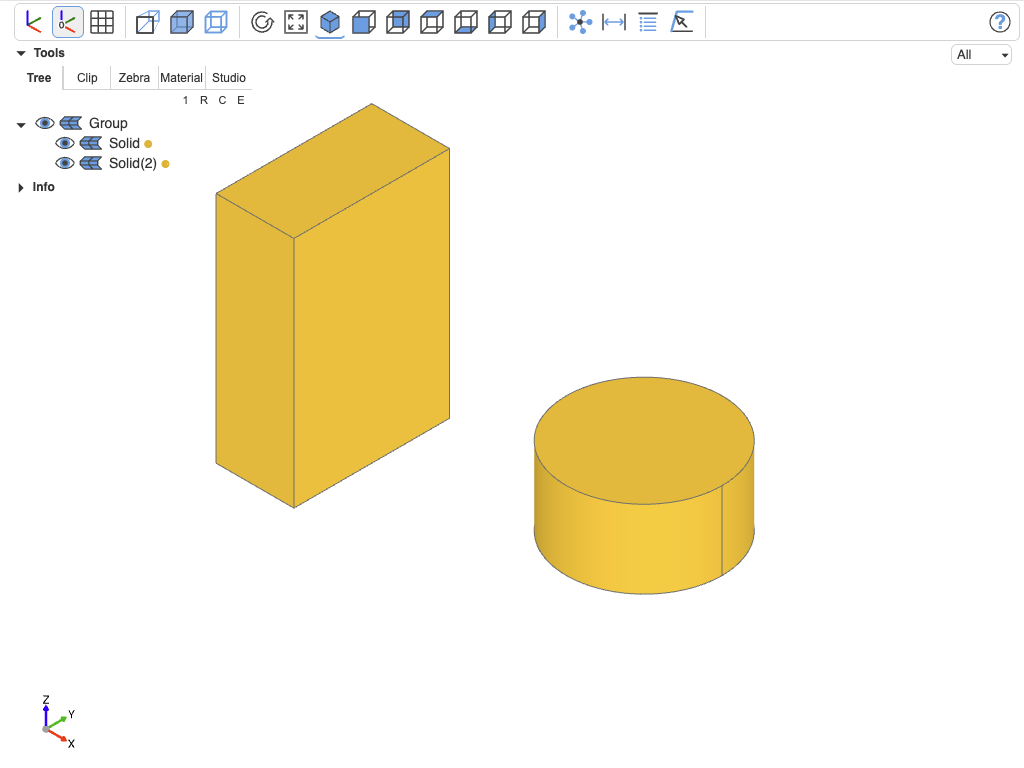
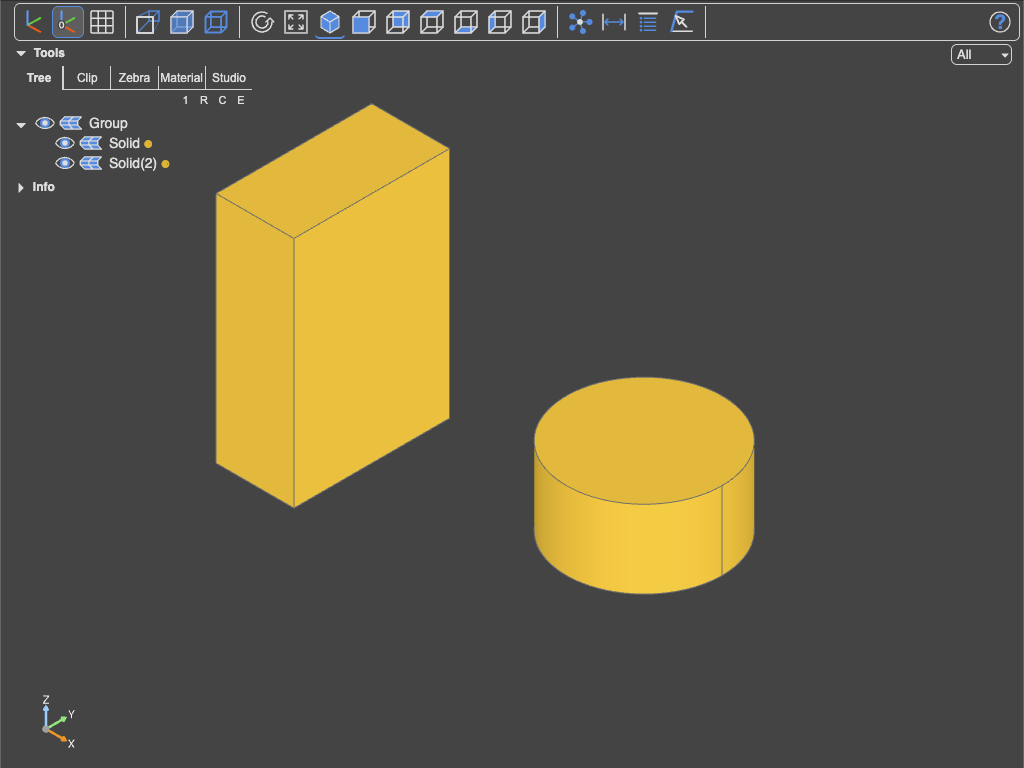
show(b, c, glass=False)
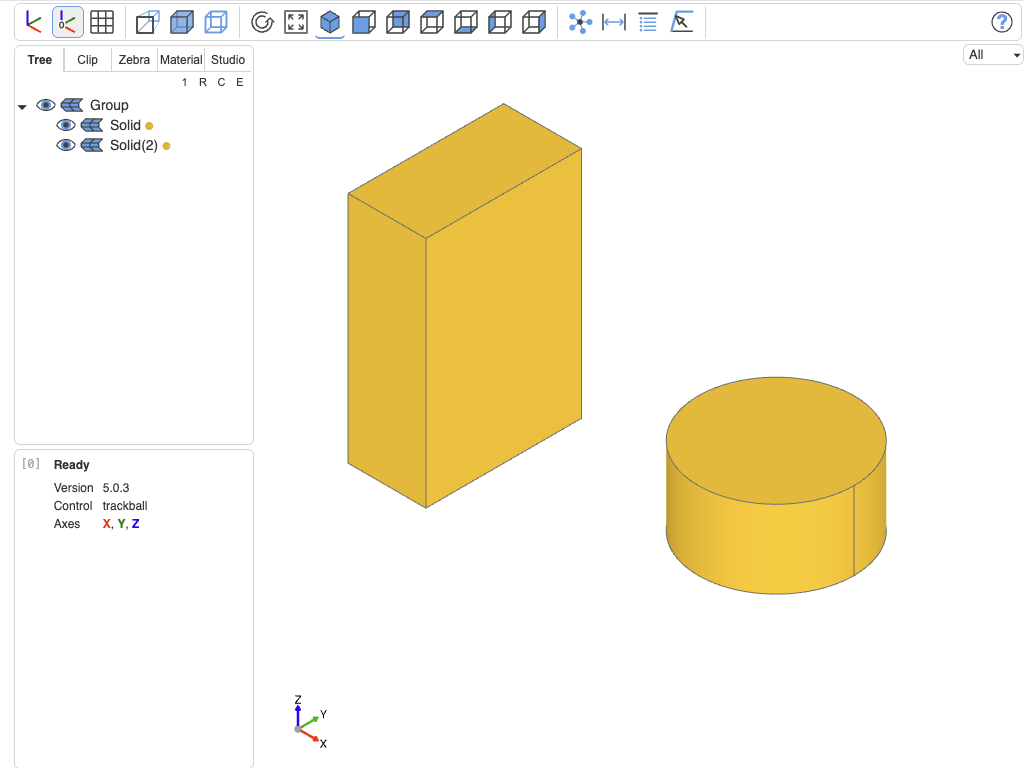
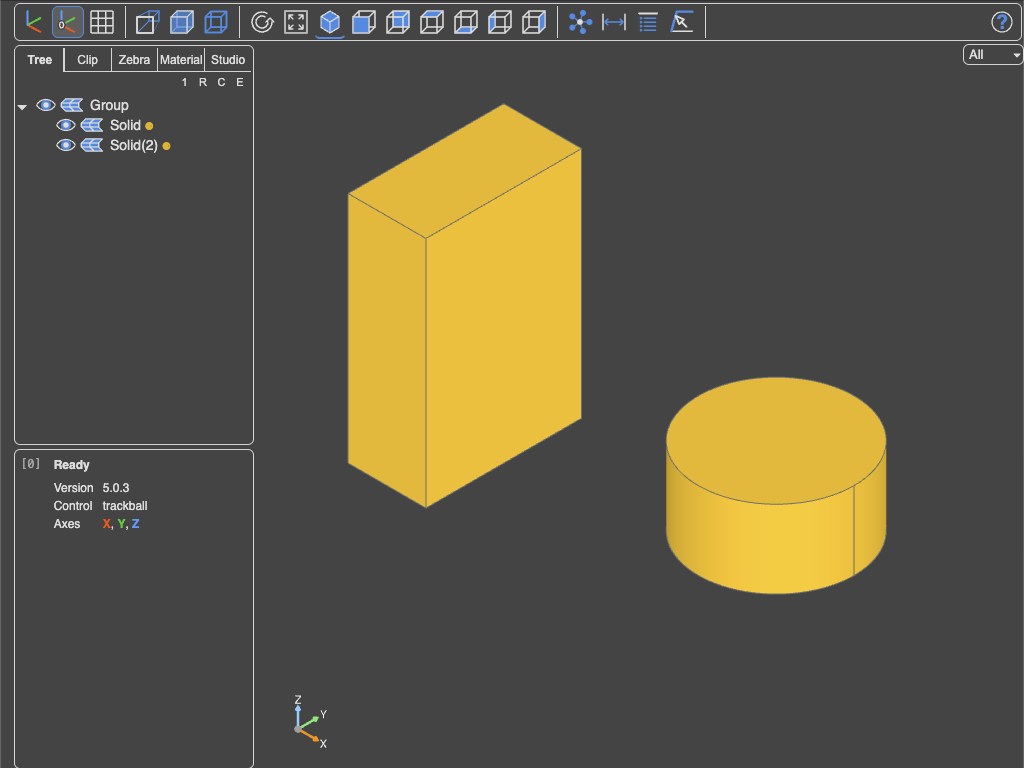
Hide the tree in glass mode by collapsing it
show(b, glass=True, collapse=Collapse.ALL)
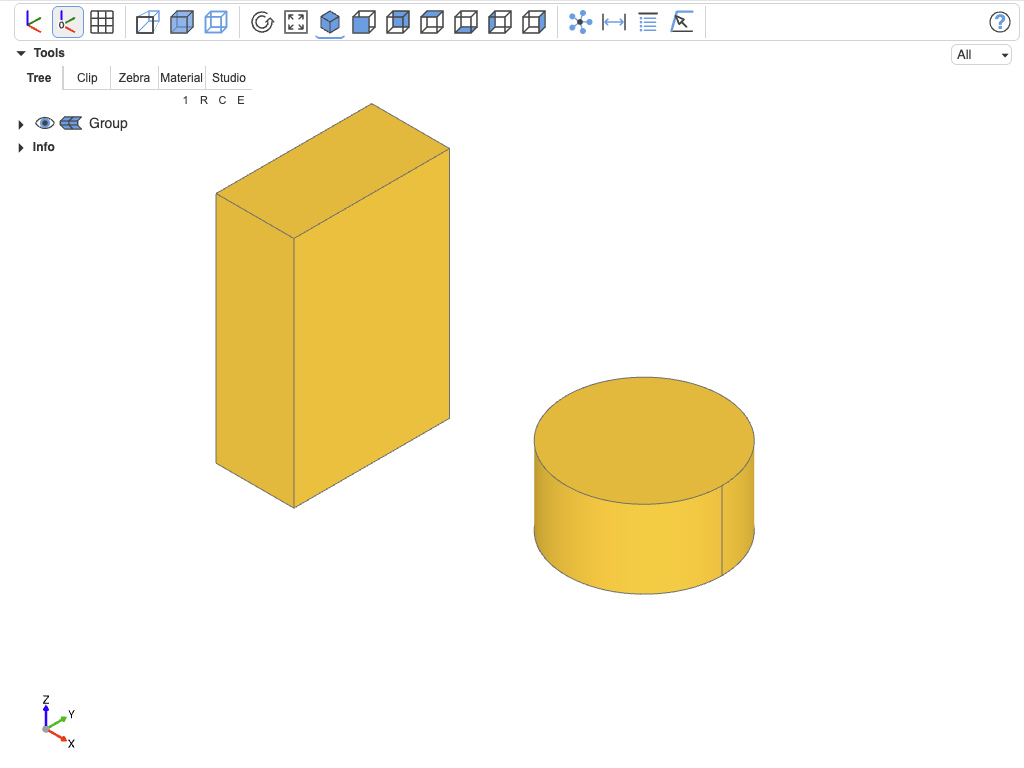
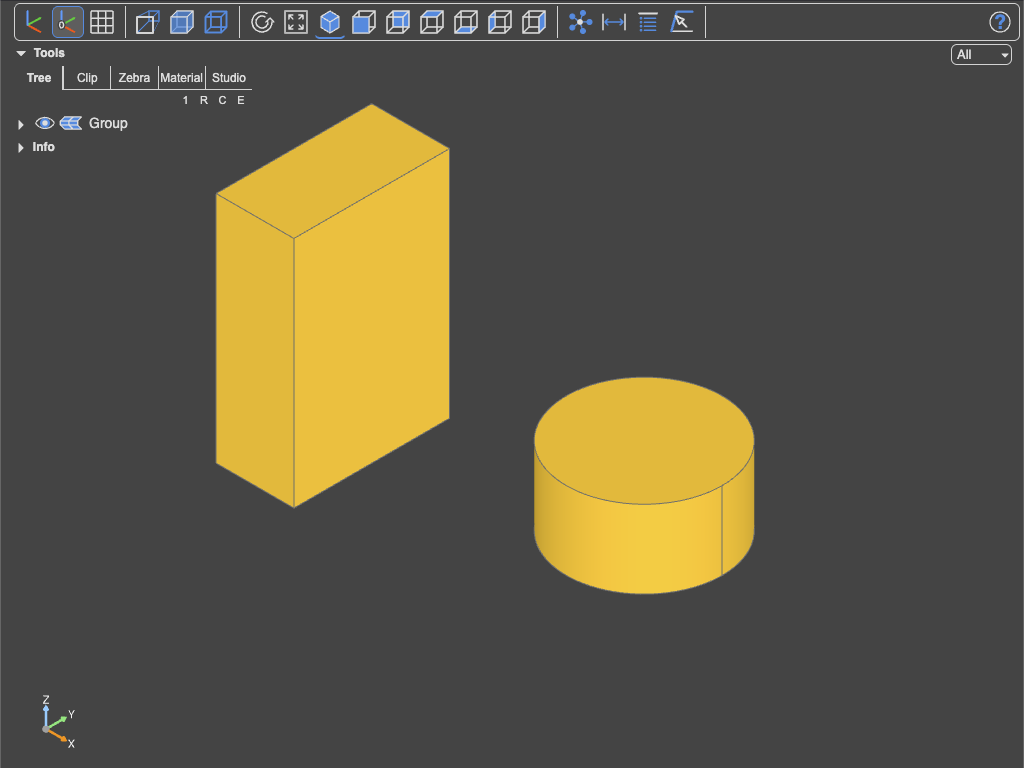
Other valid parameters, see Collapse
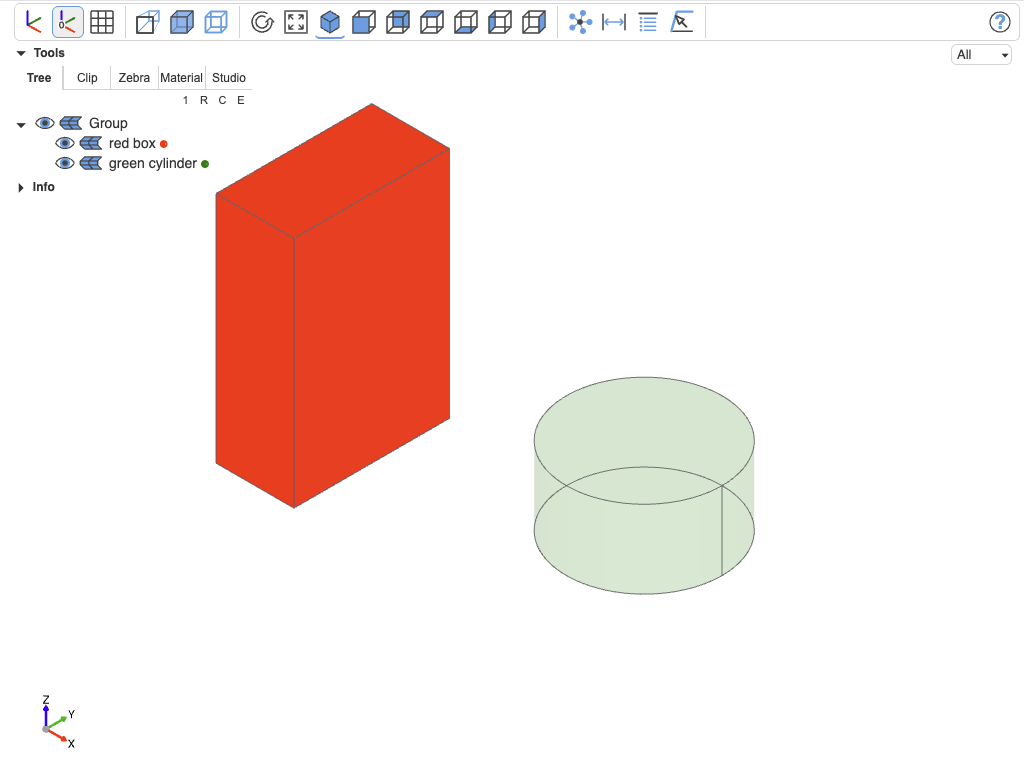
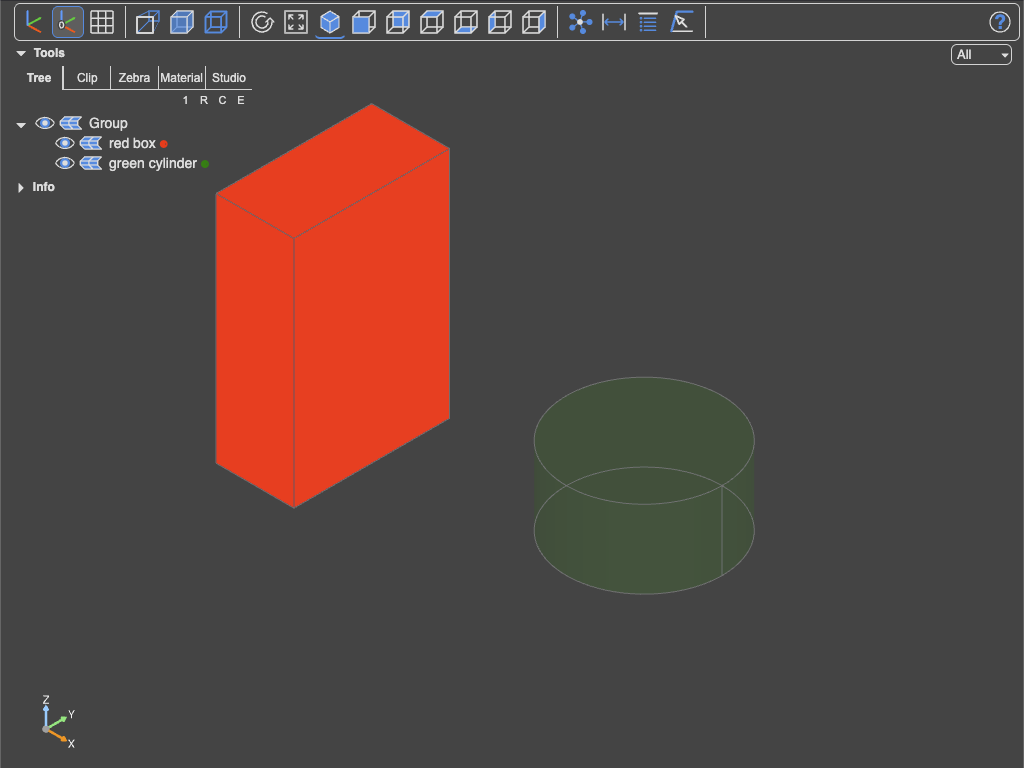
Names, colors and alpha values
show(b, c, colors=["red", "green"], names=["red box", "green cylinder"], alphas=[1.0, 0.2])
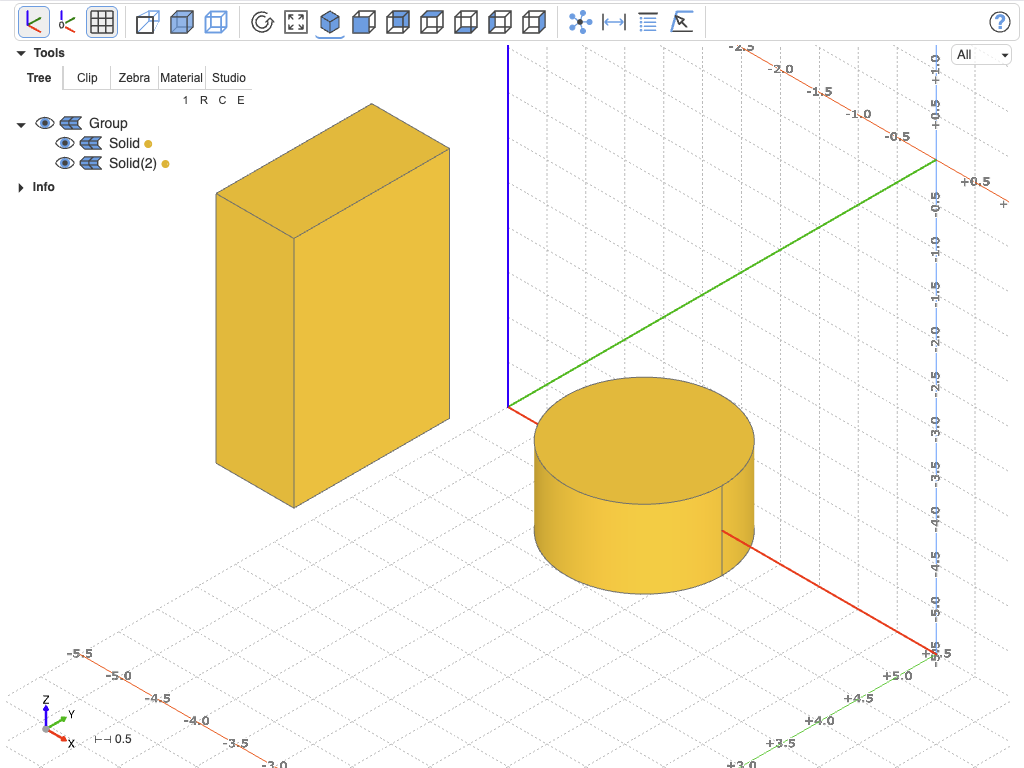
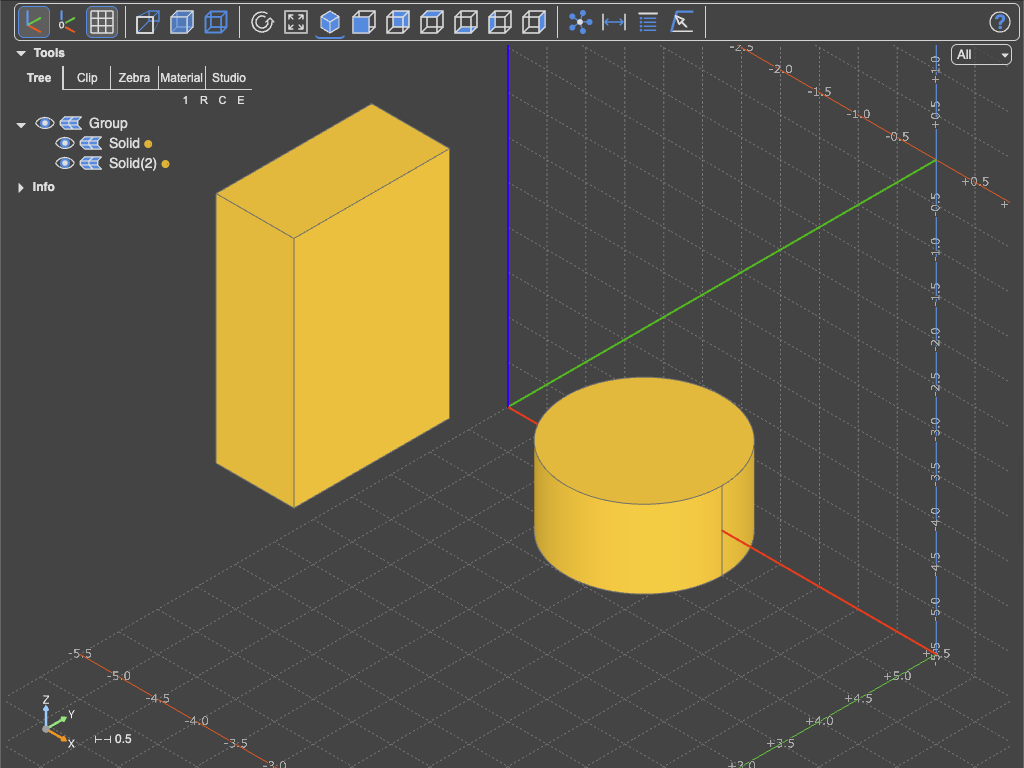
Axes and grids
show(b, c, axes=True, axes0=False, grid=(True, False, False), ticks=20, center_grid=True)
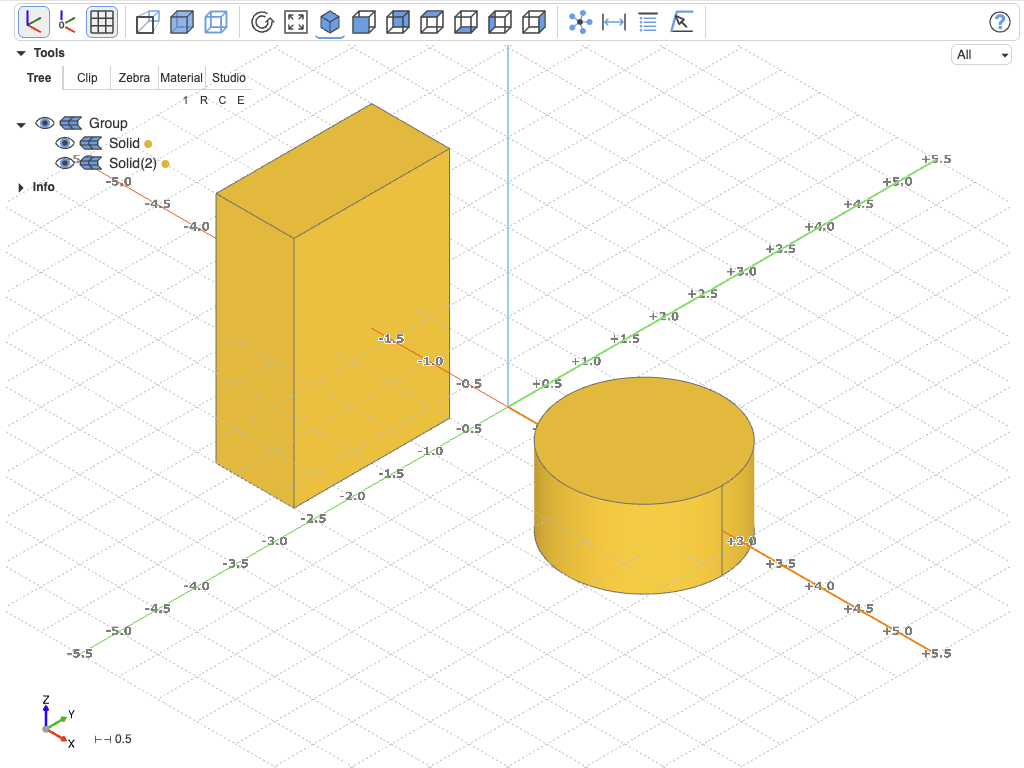
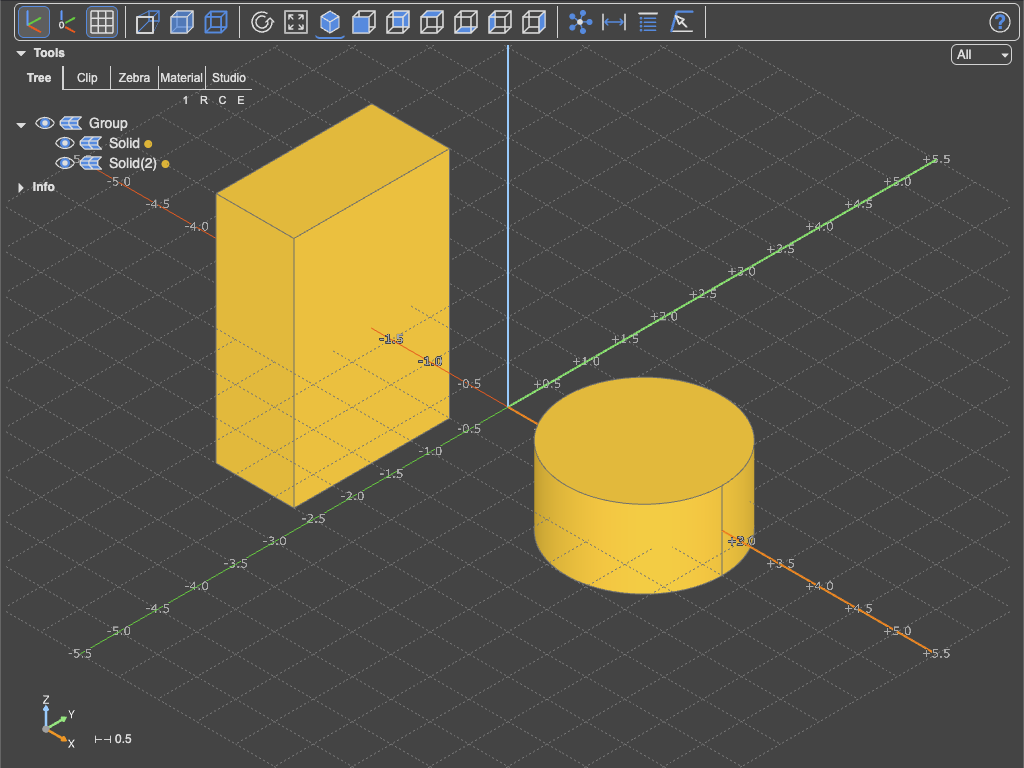
show(b, c, axes=True, axes0=False, grid=(True, True, False), ticks=20, center_grid=False)
Keeping the camera position between show commands
show(b, c, reset_camera=Camera.KEEP)
Other valid parameters, see Camera
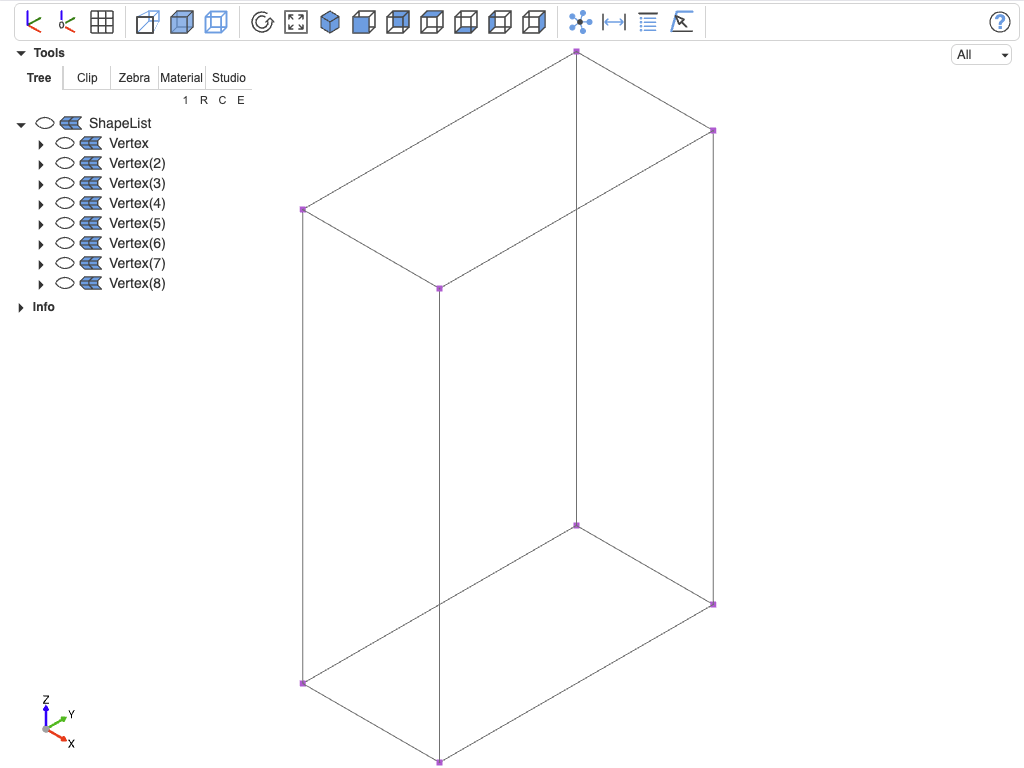
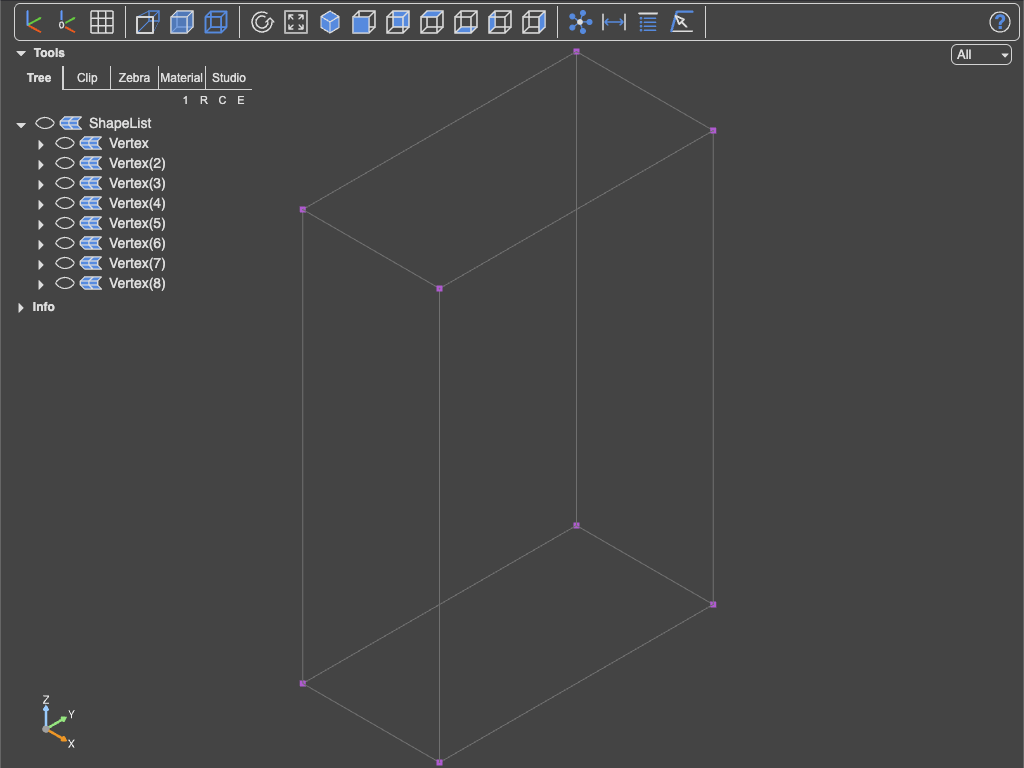
Show parent object for edges, faces and vertices (build123d syntax)
show(b.vertices(), show_parent=True, collapse=Collapse.ROOT)
show(b.edges().filter_by(Axis.Y), show_parent=True, collapse=Collapse.ROOT)
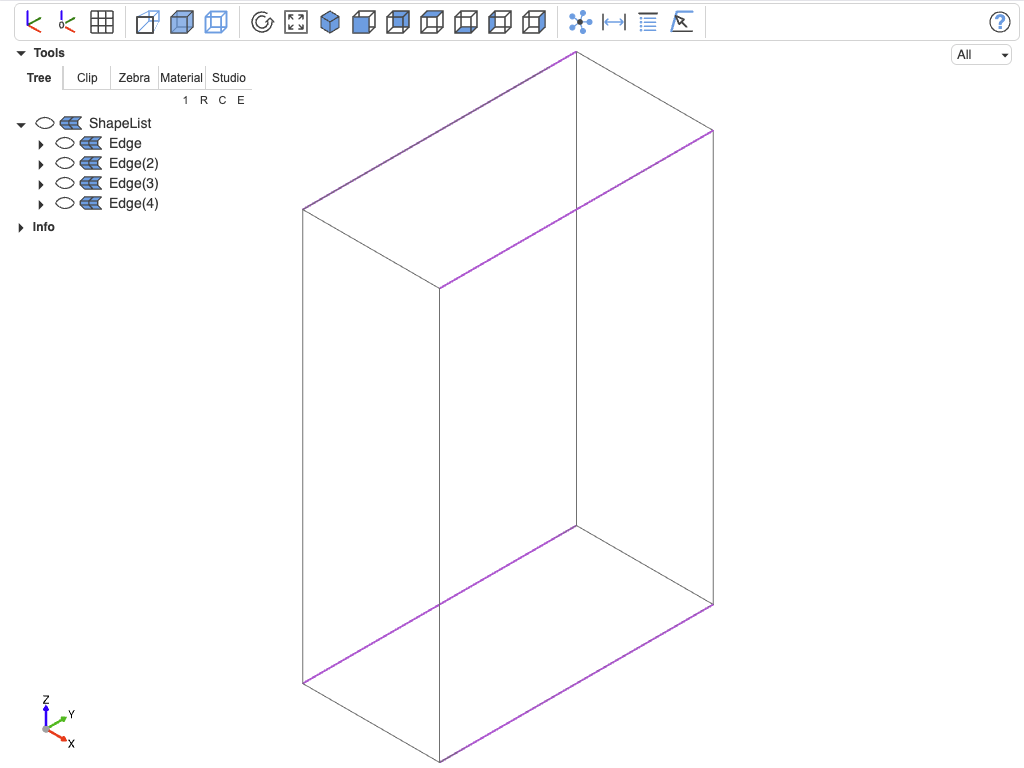
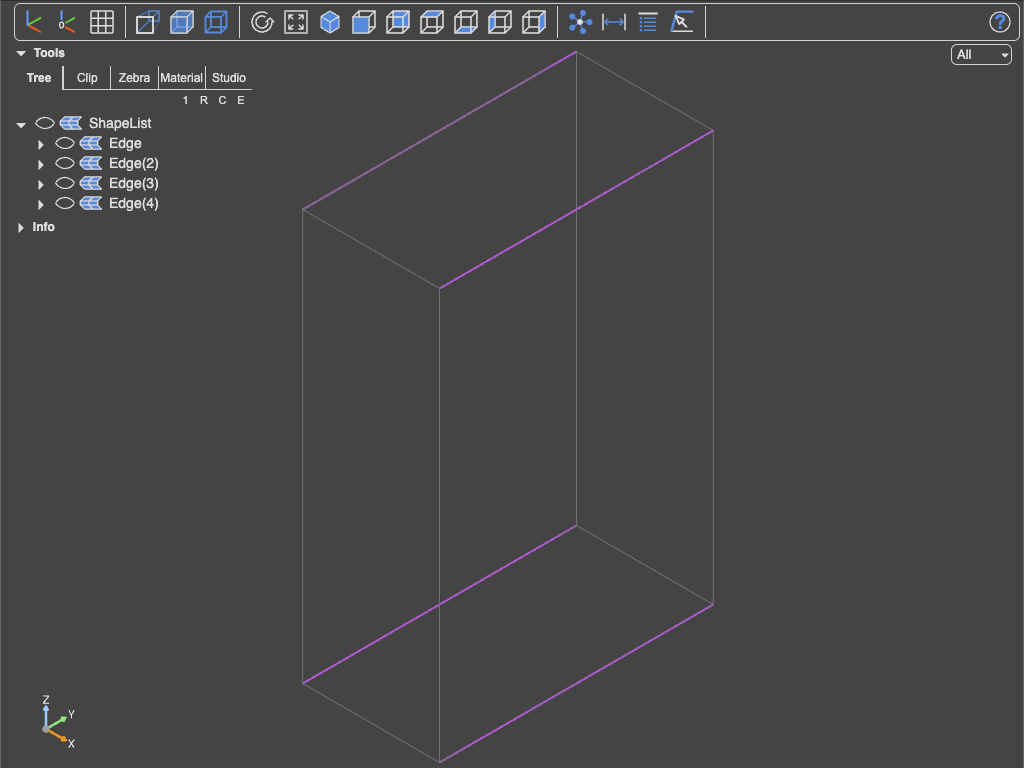
show(b.faces().filter_by(Axis.Y), show_parent=True, collapse=Collapse.ROOT)